
Downloading a map and buying a bigger data plan solve different problems. A download gives you a useful fallback; a connection supports changing plans and online services. Start with our travel data planning guide if you are budgeting for navigation alongside messaging, video and other apps.
Guidance reviewed: 28 September 2026. This article provides a repeatable measurement protocol. We have not performed the phone tests described below, and we do not claim a measured MB-per-hour figure.
Your pre-trip checklist
- Prepare downloads on Wi-Fi rather than spending travel data on setup.
- Do not assume a saved map replaces every online navigation feature.
- Record the app’s cellular-data counter, not just the phone’s total consumption.
- Keep essential addresses separately and check your planned route before departure.
Download Google Maps before your trip
Download the destination while you still have a reliable connection. An offline map is an area stored on your device for use without an internet connection.
- Open Google Maps on Wi-Fi. On Android, sign in; on iPhone, leave Incognito mode.
- Tap your profile picture or initial, then Offline maps.
- Choose Select your own map and adjust the rectangle.
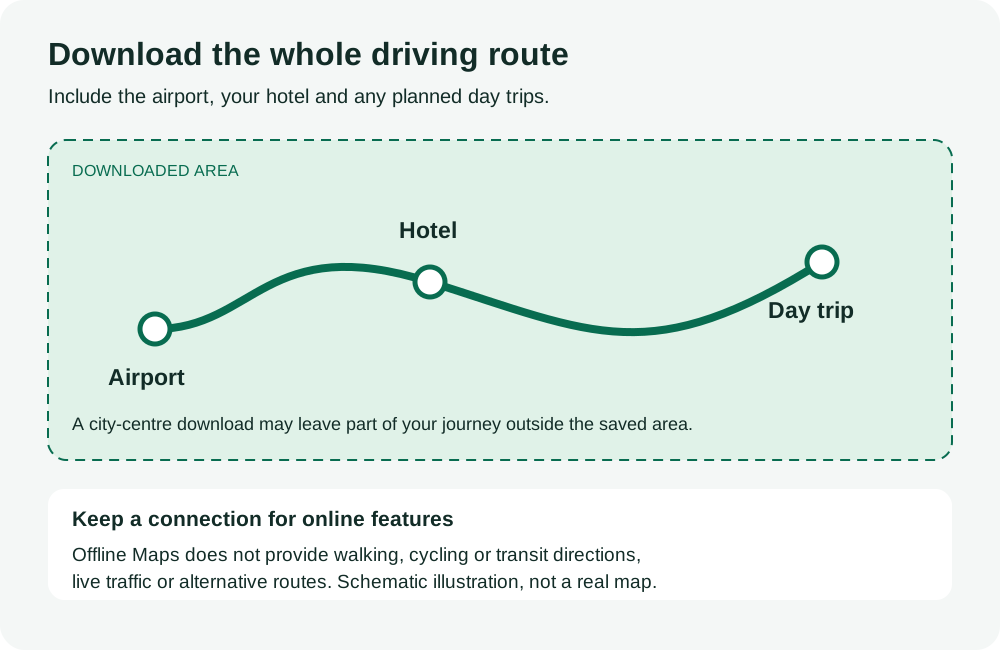
- Include your airport, accommodation and intended driving route, not just the city centre.
- Tap Download and wait for completion. Check the saved area’s expiry and update before departure.
Google documents the process for Android offline maps and iPhone offline maps. Downloads are unavailable in some regions. Check availability for the actual destination before relying on this option.
What works without internet?
Offline Google Maps is useful for driving within a downloaded area, but it does not replace connected navigation. Google’s guidance requires the entire route to fit inside the saved map.
| Feature | Offline availability | Trip-planning implication |
|---|---|---|
| Driving directions | Within the downloaded area | Include the full journey. |
| Walking, cycling and public-transport directions | Unavailable offline | Arrange connectivity or another suitable navigation resource. |
| Live traffic and alternative routes | Unavailable offline | Do not plan around live updates without a connection. |
Before leaving, briefly disconnect Wi-Fi and mobile data while safely stationary and try your intended route. Restore connectivity afterwards. This checks your preparation; it is not proof of future road conditions or destination coverage.
A simple example: airport, hotel and a day out
Plan the download around the journey, not just the name of the destination. For a hire-car trip, include the airport, hotel and planned drive outside the city in the saved area. If the day out involves walking or public transport, keep a connection available for those directions.
Before departure, write down the hotel address and check the transfer instructions. A saved map is one part of the plan; essential booking details should also be easy to find.
Reduce data use without losing useful features
A practical travel setup combines advance preparation with selective connected use. Decide which features your itinerary needs before restricting Google Maps’ access to data.
- Research accommodation, transfers and meeting points before departure and keep essential addresses available separately.
- Check map downloads and updates on hotel Wi-Fi rather than leaving preparation until a roadside stop.
- If transit directions matter, budget for connected use instead of assuming the offline area is enough.
- Measure other apps separately. A navigation budget should not silently include video uploads or a laptop hotspot.
On iPhone, Settings → Cellular or Mobile Data shows per-app consumption and lets you disable cellular access for an individual app. That app can still use Wi-Fi. Apple’s cellular-data instructions also explain Reset Statistics and selecting the data line on a dual-SIM phone. Record existing readings before resetting them.
For Pixel, use Settings → Network & internet → SIMs → App data usage and select the relevant period. Other Android brands use different menu paths. Google’s data-usage guidance explains that phone measurements can differ from the carrier’s figures; use your provider’s allowance display when checking how much paid data remains.
How much mobile data does Google Maps use?
This guide does not assign a universal MB-per-hour rate to Google Maps. A useful estimate should describe the device, app version, map preparation and tasks being measured, rather than present an unexplained number as a travel guarantee.
For example, comparing an hour of route guidance with an hour of browsing unfamiliar destinations would not isolate the same activity. Even repeating the same route can benefit from previously cached content. Report those conditions instead of attributing every difference to an offline download.
Use the protocol below to build an estimate for your phone. It is designed as a practical personal benchmark, not a laboratory claim about all travellers.
A repeatable Google Maps data-use test
CheckeSIMRates’ proposed test separates connected navigation, prepared connected navigation and an offline functionality check. No measurements have been collected for this article; the worksheet deliberately contains no invented results.
Record the conditions first
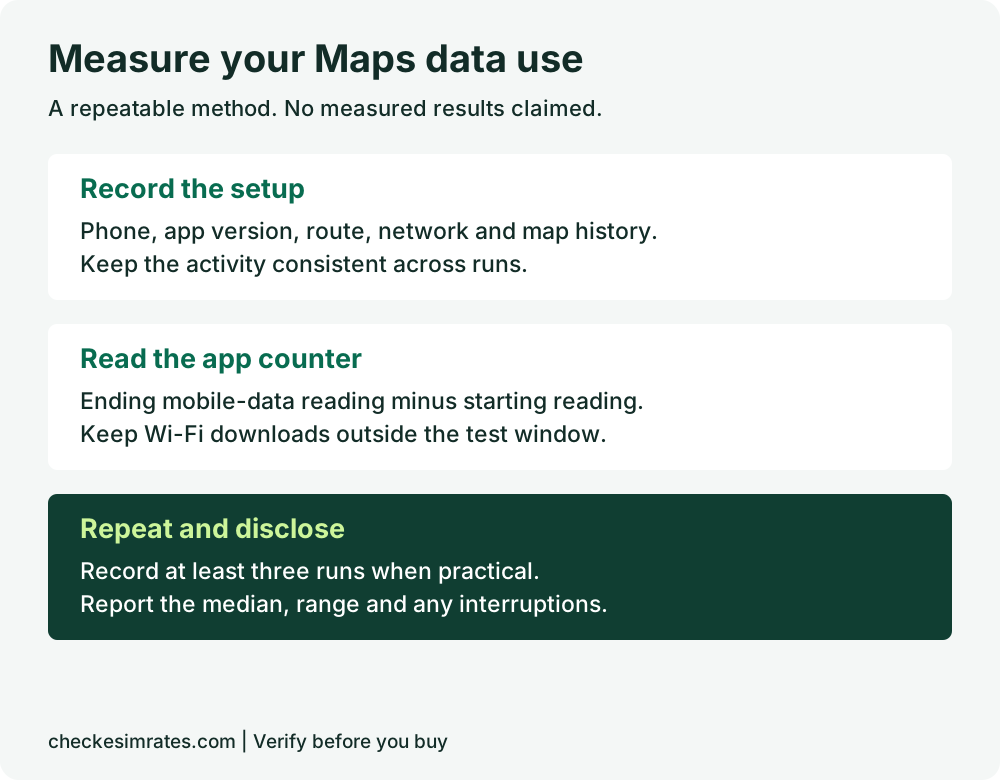
A reproducible comparison needs a written record of the setup. Note the phone model, operating system, Google Maps version, date, network, selected data SIM and whether an offline area is installed.
Choose a fixed route and travel mode, then record the actual duration and distance for every run. Note previous use of the same map, navigation settings, searches, place-photo browsing, diversions and connection interruptions. If driving, let a passenger handle the phone or record readings before and after while parked.
Run three clearly labelled scenarios
The three scenarios answer different questions, so do not average them into a single headline result.
| Scenario | Setup | What to record |
|---|---|---|
| A: connected baseline | Wi-Fi off; mobile data enabled; no deliberately downloaded area | App counter difference and existing cache history |
| B: prepared and connected | Area downloaded on Wi-Fi; mobile data enabled during the same task | App counter difference; keep the download outside the measurement window |
| C: offline check | Downloaded area; Wi-Fi and mobile data disabled | Whether the planned task works and which features are missing |
Scenario A is not guaranteed to be uncached. Do not erase essential app data during a trip just to manufacture a clean baseline. If the same phone runs A before B, disclose the order and the possibility that caching affected B.
Measure, repeat and report honestly
Measure each connected run using the difference between the Google Maps cellular counter at the start and end. Keep other activities consistent and allow the counter to settle before taking the final reading.
- Take a screenshot of the starting app counter and record the time.
- Complete the defined task without unrelated Maps browsing.
- Record the ending counter, duration and any deviation from the plan.
- Repeat each connected scenario at least three times when practical, keeping the same recorded conditions.
- Report every run, the median and the range. Flag interruptions and explain exclusions rather than discarding inconvenient readings.
Mobile data used = ending app counter − starting app counter. Use one unit throughout. For duration-normalised reporting, MB per hour = measured MB ÷ measured minutes × 60. Label that figure as a normalised result from the stated task, not a prediction for every hour of travel.
| Run | Scenario | Start / end MB | Minutes | Notes |
|---|---|---|---|---|
| 1 | A or B | Record your readings | Record duration | Cache, searches, interruptions |
| 2 | A or B | Record your readings | Record duration | Same conditions or differences |
| 3 | A or B | Record your readings | Record duration | Explain unusual results |
Choose travel data for your whole trip
A Maps measurement covers only the tested Maps activity. Add your other expected uses and a personal contingency allowance before selecting a plan; do not claim that a navigation result alone proves a particular package is sufficient.
Compare travel plans by destination, then check your phone’s eSIM compatibility. Read when to activate a plan so your preparation does not inadvertently start paid validity too early.
Frequently asked questions
Does downloading a map guarantee zero mobile data use?
No. A download is not the same as disabling cellular access. If you need to prevent app cellular use, use the phone’s available controls and understand that connected features will be unavailable.
Is the download size my expected daily data usage?
No. The download and daily connected usage are different measurements. Record preparation separately from navigation and browsing.
Can I budget using somebody else’s MB-per-hour figure?
Use it only as context if the test conditions are documented. Your phone, app version and activity may differ; a short test on your own setup is more relevant.
Should I buy unlimited data just for Google Maps?
This article provides no evidence that unlimited data is necessary. Choose based on your full trip needs and compare fixed-data and unlimited plans, including their restrictions.
Prepare the map and keep a connection plan
Download before departure, check the saved area and know which tasks need internet. Use the worksheet to measure your own behaviour rather than rely on an unsupported usage promise. Keep essential travel information available independently of a single app.
Methodology: Official Google Maps, Google Pixel and Apple support documentation was reviewed on 28 September 2026. The test protocol and worksheet are original editorial recommendations, not completed field testing. Menu paths and availability may change. This guide is independent of Google and Apple.